





Someone on the phone asks for your IP, and you blank on which command your OS wants. Windows takes ipconfig; Linux wants ip addr, or just ip a if you're typing fast; on a Mac, ifconfig still does the job, and ipconfig getifaddr en0 does it with less noise. Every one of those prints the local address, the private one your router handed out, usually starting 192.168 or 10. That's the number you need for reaching a machine on the same network or checking which interface is actually up. The public address is a different animal. It lives on your router, your machine genuinely has no idea what it is, so we ask an outside service with a one-line curl. Below, the command for each OS, plus how to read past the clutter and why the two addresses never match.
The short answer
Local address: ipconfig on Windows, ip addr (or ip a) on Linux, ifconfig on macOS. The public one, what the internet actually sees, takes curl ifconfig.me on any of them.
Windows, Linux and macOS
ipconfig dumps every adapter it knows about. On a laptop with a VPN and WSL installed, that’s a screenful. Scan for IPv4 Address under whichever adapter is actually connected, normally Wi-Fi or Ethernet, and skip anything that says media disconnected.
ipconfig
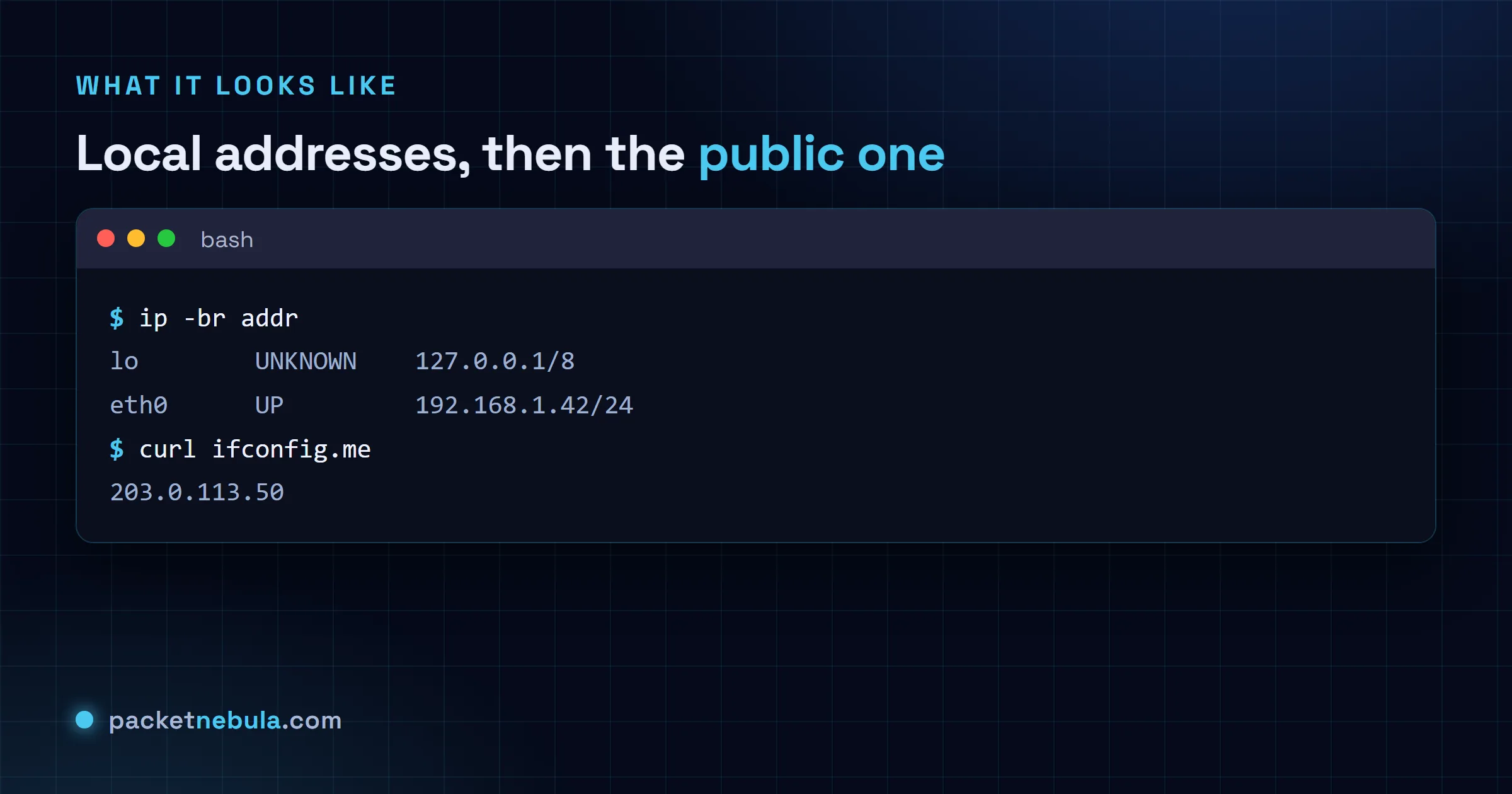
On Linux it’s ip addr, or ip a if you’re typing fast. The full output is chatty. Honestly we go straight to ip -br addr most days: one tidy line per interface with its address and state, done. ifconfig still works on plenty of boxes, but the distros stopped pointing you at it a while ago.
ip -br addr
macOS still ships ifconfig, but there’s a shortcut that prints only the address of your main interface. Nothing to parse:
ipconfig getifaddr en0
The public IP is somewhere else
Everything above is private. The address the internet actually sees belongs to your router, and your machine genuinely doesn’t know it. So we ask someone outside to tell us:
curl ifconfig.me
For the full picture (public IP plus what your browser reveals), the What Is My IP tool shows it all in one place, and IP geolocation tells you where any address sits.
Two details that turn a confusing answer into an obvious one. A machine on a VPN has more than one address, and the VPN interface will usually be listed first, so the address you want depends on which network you mean. Read the interface name rather than grabbing the first line.
And hostname -I on Linux is the quick one, but it prints every address on every interface separated by spaces, including Docker bridges. When you want one clean answer for the main interface, ask for it specifically.
ip -4 -brief addr show scope global
There’s a reason this confuses people. The address your machine knows about usually isn’t the one the internet sees, and if there’s a router between you and the world, which there nearly always is, they’re two genuinely different things. Work out which one the question is about before you go looking.
Frequently asked questions
What’s the difference between my local IP and my public IP?
They're almost never the same number. The local IP comes from your router and only means something on your own network; it usually starts 192.168, 10. or 172.16 to 31. The public IP belongs to the router itself, and that's what websites and remote servers actually see. A whole house of devices shares that one public IP.
My ipconfig output lists several adapters. Which one is mine?
Find the one that's actually connected and shows an IPv4 address: usually "Wireless LAN adapter Wi-Fi" on a laptop or "Ethernet adapter" on a desktop. Anything that says media disconnected can be skipped, and so can the virtual adapters VPNs, VirtualBox or WSL leave behind (unless one of those is what you're after).
How do I get just the public IP without a website?
Ask an echo service with curl. "curl ifconfig.me" or "curl -4 icanhazip.com" prints your public IPv4 and nothing else. Works the same on Windows, macOS and Linux as long as curl is installed, and it ships by default on all three now.
ip addr is a lot of output. How do I trim it?
"ip -4 addr" drops the IPv6 noise, and "ip -br addr" gives you one brief line per interface, which is what we reach for first. Want a single interface? Name it: "ip addr show eth0". On older systems ifconfig still works, but it's not the tool Linux points you at anymore.