




The new server is up, the IP is sitting in your clipboard, and the OVH panel is doing its best to hide the one tab you need. It's the DNS Zone tab of your domain, and that's the whole answer. Nearly every change comes down to one move: set the A record so the name points at the server's IP. Edit the apex row and give www the same target. Save. What actually bites is the cleanup nobody does, because a leftover AAAA or A record aimed at an old host will quietly send visitors, and Let's Encrypt, to the wrong machine. That one cost me an afternoon once. Below: where the zone lives, which record to touch, the leftover trap, and how to check the change really took.
The short answer
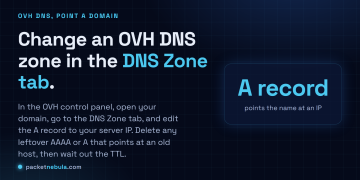
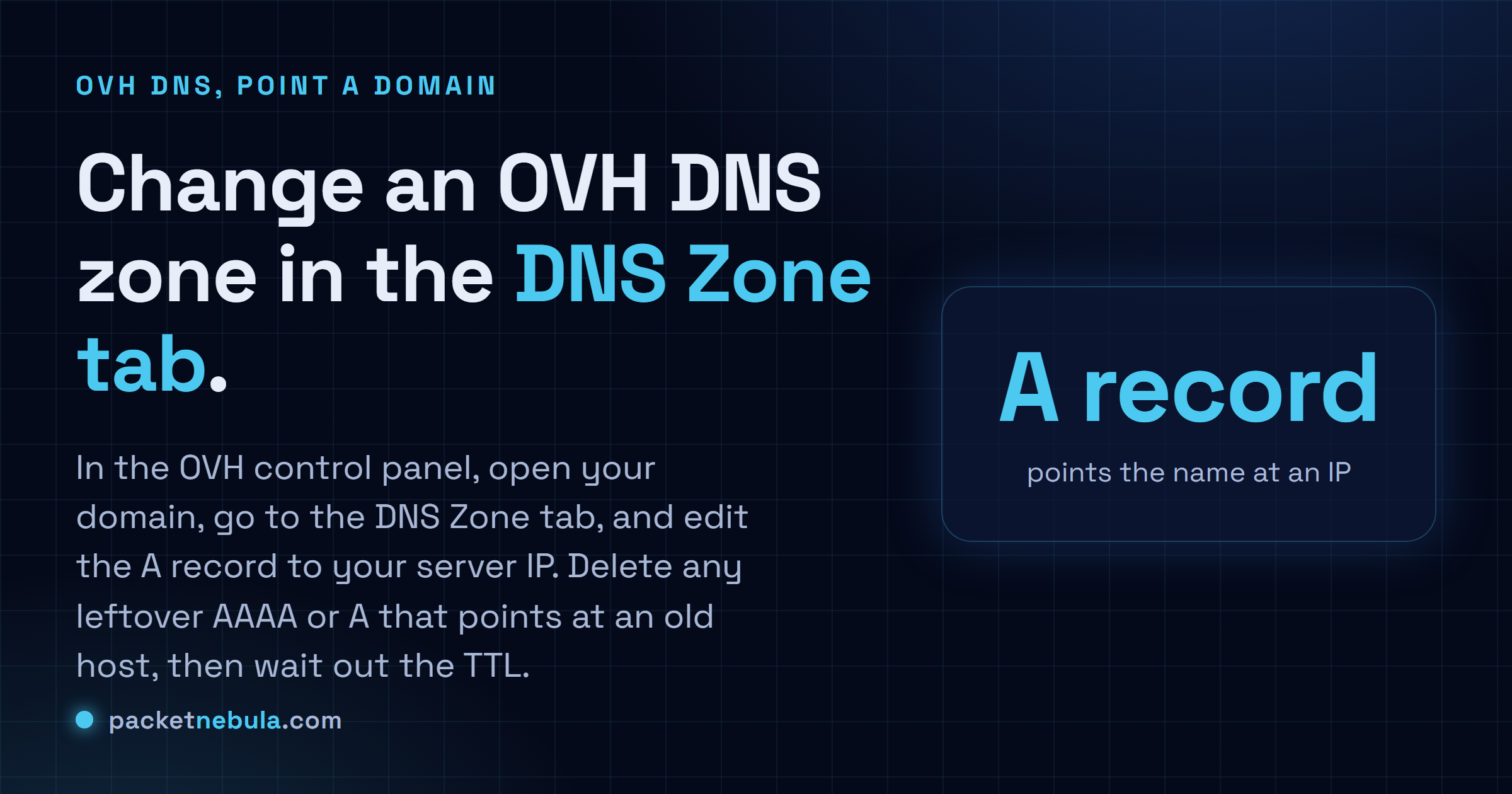
Open your domain in the OVH panel, then the DNS Zone tab. Edit the A record so the name points at your server’s IP, and do www too. Delete any stale AAAA or A, save, and wait out the old TTL before you decide anything’s broken.
Where the DNS zone lives, and how to edit the A record
OVH has piled on buttons over the years, so here’s the path we still use: Web Cloud, then Domain names, pick your domain, then the DNS Zone tab. What loads is the entire zone, one row per record. Intimidating at a glance. It’s a list, and you edit it a row at a time.
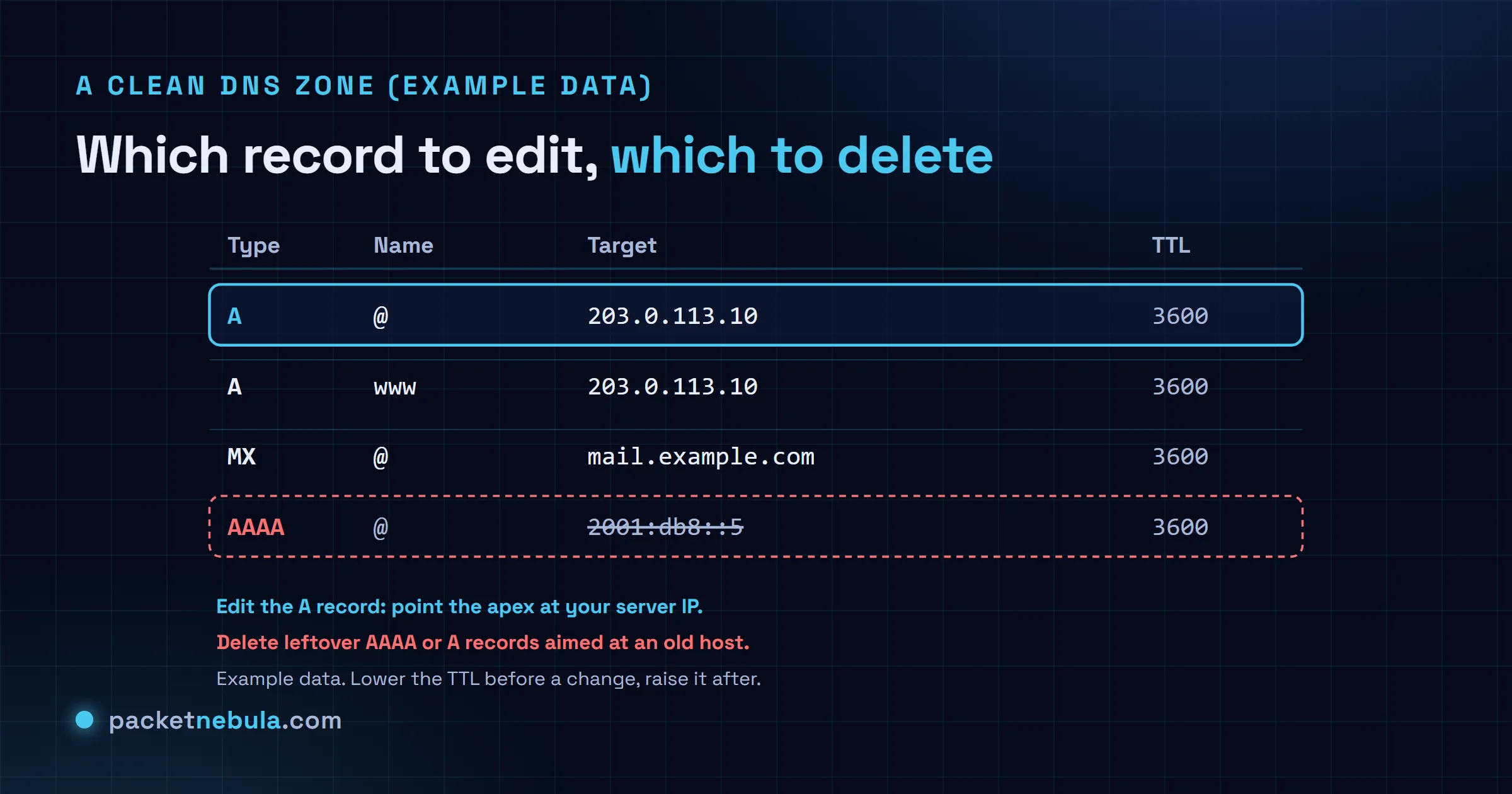
An A record maps a name to an IPv4 address. That’s the whole idea. Set the apex, the row OVH shows as @, to your server’s IP, and send www to the same place. Here’s what a clean zone looks like, with example values:
| Type | Name | Target | TTL | What to change |
|---|---|---|---|---|
| A | @ | 203.0.113.10 | 3600 | Point the apex at your server’s IPv4 |
| A | www | 203.0.113.10 | 3600 | Same target as the apex |
| MX | @ | mail.example.com | 3600 | Leave it, that’s your mail |
| AAAA | @ | 2001:db8::5 | 3600 | Delete it if it points at an old host |
For www you can use a second A record or a CNAME back to the apex. Either works. Pick one and move on. Same picture, drawn out:
Clean up the leftovers, this is the trap
Here’s the one that got me. If the domain ever lived somewhere else, the zone usually still carries an old A or AAAA pointing at that previous host. Nothing warns you. Browsers will happily follow it, and so will Let’s Encrypt when it goes to validate a certificate, which then fails for no reason you can see. The check landed on the wrong server entirely.
So before you walk away: scan the rows and delete anything that doesn’t point at your new server. AAAA records are the usual culprit, because people forget the domain ever had IPv6 in the first place. Two minutes now saves you an hour of squinting at a cert error later.
Check it took, and what propagation really means
Don’t trust your own browser here, it caches like a magpie. Ask a public resolver straight out:
nslookup example.com 1.1.1.1
dig +short example.com @1.1.1.1
If the public resolver shows the new IP but your machine still shows the old one, that’s your local cache talking, not OVH. Clear it: see flush the DNS cache on Windows or on Linux.
There’s no magic delay and nothing you can pay to speed up. Every resolver holding the old answer keeps serving it until that record’s TTL expires, then asks again. So your real wait is whatever TTL sat on the record before you touched it. Knew the change was coming? Then you’d have lowered the TTL first. The full story, and why that’s the one trick that makes DNS changes painless, is in our DNS TTL guide.
Do one thing before a planned migration, ideally a day ahead: drop the TTL on the records you’re about to change, down to 300 seconds. Resolvers hold an answer for as long as its TTL says, so a record sitting at 86400 will keep pointing at the old server for up to a day after you edit it, no matter how quickly OVH publishes the change. Lower it first, migrate, then put it back once things are stable.
The leftover that bites hardest is an AAAA record nobody remembers creating. If your domain still publishes IPv6 pointing at the old host, any visitor with working IPv6 goes there and everyone else sees the new site, which produces the maddening "it works for me" split. Delete or update the AAAA at the same time as the A record, always.
And if DNSSEC is enabled on the domain, changes take an extra step to propagate correctly. When a zone edit seems to publish but resolvers keep serving the old answer well past the TTL, DNSSEC is the first place we look.
Frequently asked questions
Where is the DNS Zone in the OVH panel?
Log in, open Web Cloud, click Domain names, pick your domain, then the DNS Zone tab. That table is the whole zone: every A, AAAA, CNAME, MX and TXT record the domain has. Looks like a lot. It's just a list, and you edit it one row at a time.
Which record actually points my domain at a server?
The A record. Set the apex (the row shown as @) to your server's IPv4 and give www the same target, either a second A or a CNAME back to the apex. Got IPv6 on the server? Add an AAAA too. No IPv6? Then make very sure there isn't an old AAAA still lying around.
I changed it but the site still hits the old server. Why?
Two usual suspects. Either the old value hasn't expired yet (resolvers keep serving it until its TTL runs out), or your own machine cached it. Flush your local DNS and ask a public resolver like 1.1.1.1 instead of trusting your browser.
Should I lower the TTL before changing anything?
If you can plan ahead, yes. Drop it to 300 seconds a full old-TTL period before the change, so every resolver already holds the short value when you flip it. The switch then lands in minutes instead of hours. Raise the TTL back afterwards.