




Someone asks for the WiFi password and you realize you typed it once, two years ago, and it's gone from your head. Your PC hasn't forgotten: one netsh command prints any saved WiFi password on Windows in clear text, nothing to install, nothing to reset on the router. It works the same on Windows 10 and 11. The catch, and it's the one everyone hits, is that the password only shows from a Command Prompt opened as administrator, so that's where we start. Further down there's a PowerShell one-liner that dumps every saved password at once (handy on a new PC) and the two cases where no password will ever appear.
The short answer
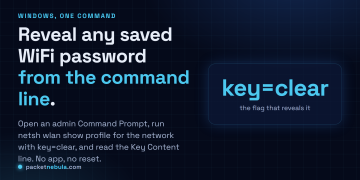
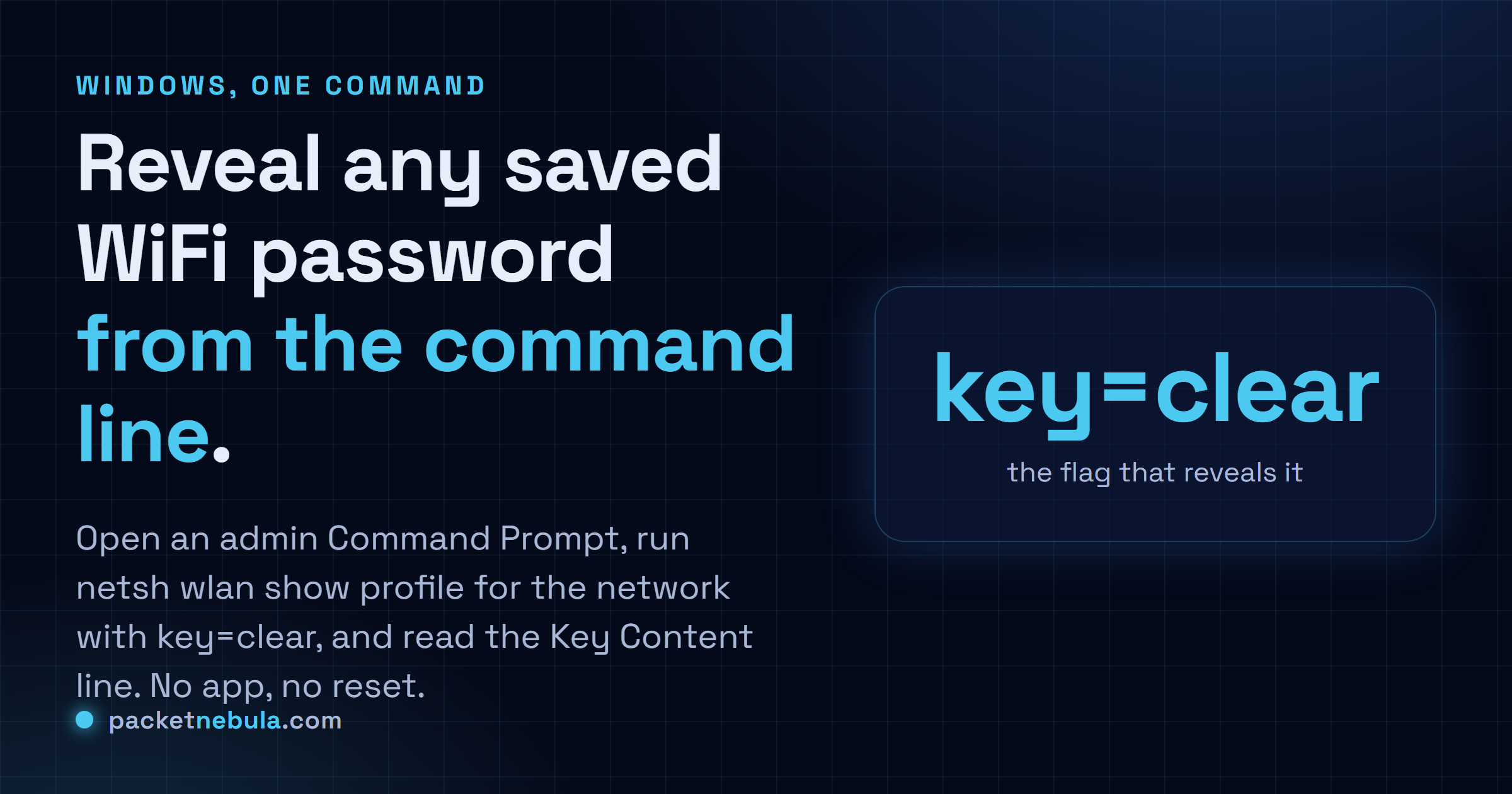
Open a Command Prompt as administrator and run netsh wlan show profile name="YourNetwork" key=clear. The password is on the Key Content line. Windows has stored it ever since you first connected, so there’s nothing to reset.
Open Command Prompt as administrator, then list the networks
This is the part people miss, then wonder why the password never shows. Press the Windows key, type cmd, and instead of hitting Enter, choose Run as administrator. The password only prints from an elevated prompt. A normal one will still list your networks, it just quietly leaves the Key Content line out. No error. Nothing.
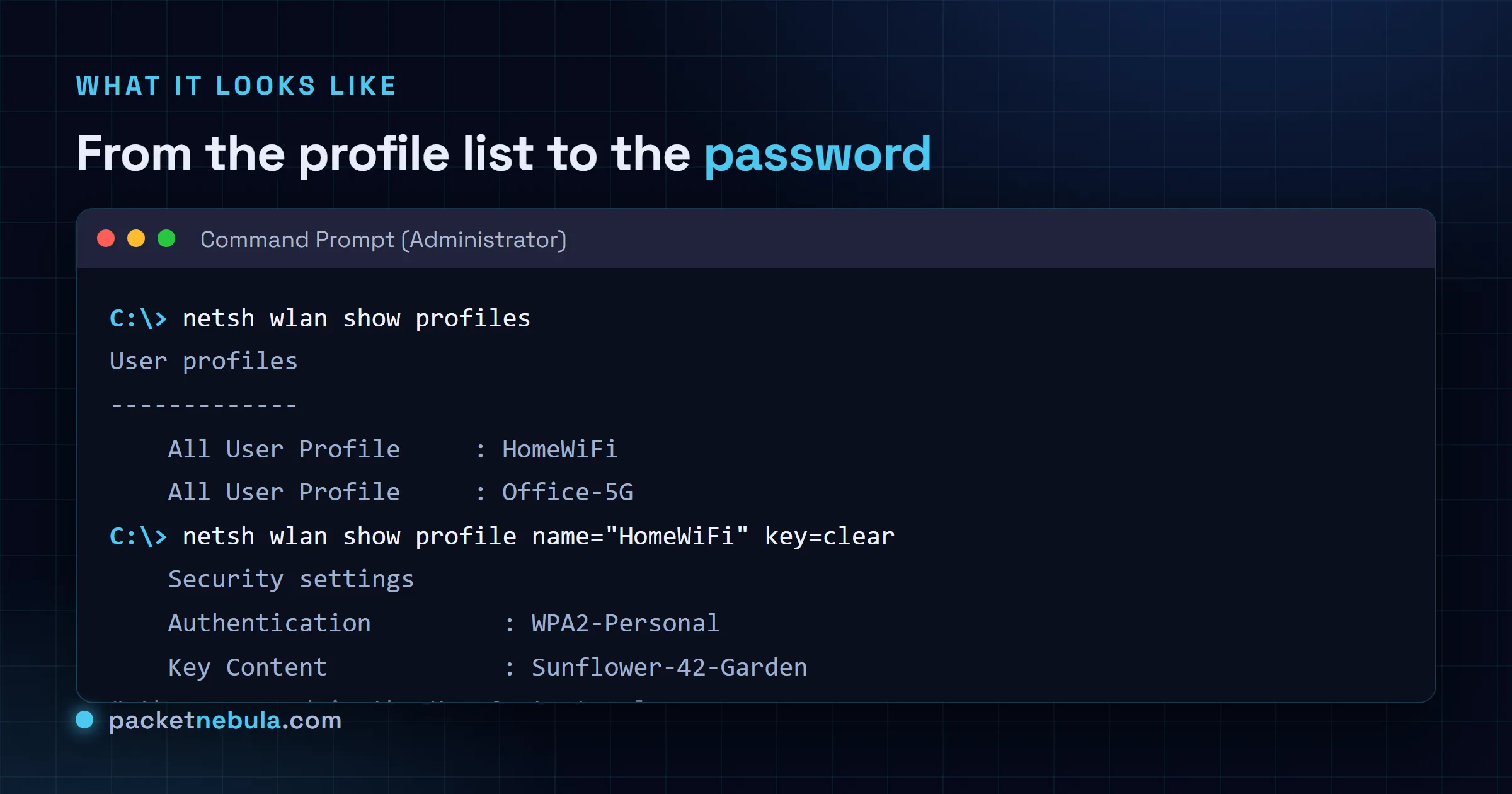
You need the exact name of the network, spelled the way Windows saved it. List what it remembers:
netsh wlan show profiles
You’ll get a block titled “User profiles” with one “All User Profile” line per saved network. Copy the name you want, spelling and capitalization included. If it has spaces or accents, you’ll wrap it in quotes in the next step.
Reveal the password, one network or all of them
Swap in the network name and ask for the key in clear text:
netsh wlan show profile name="HomeWiFi" key=clear
Scroll to the Security settings section. The line you want is Key Content, and next to it sits your password in plain text. That’s it, really. Here’s the whole sequence end to end:
Setting up a new laptop and want all of them? Open PowerShell as administrator and run this. It walks every profile and prints its name with its key:
(netsh wlan show profiles) | Select-String "All User Profile" | ForEach-Object { ($_ -split ":")[1].Trim() } | ForEach-Object { netsh wlan show profile name="$_" key=clear | Select-String "Key Content" | ForEach-Object { "$_" } }
It’s a bit dense, but it saves you running step 3 twenty times. Honestly I keep it in a notes file and paste it on every fresh install.
When it won’t work
Two real dead ends, plus one typo trap. On an open network there’s no key, so no Key Content, which is expected. On a corporate or campus network using WPA2-Enterprise (you logged in with a username, not a shared password), Windows never had a reusable key to store, so there’s nothing to recover here. And if you get “profile … isn’t found on the system”, recheck the name against the list from step 2, quotes and all.
Other systems work differently, and they each get their own guide: macOS hides saved WiFi keys in Keychain Access (or security find-generic-password in Terminal), and on Linux NetworkManager keeps them under /etc/NetworkManager/system-connections/, readable with nmcli.
Two cases where this genuinely won’t work, and it’s better to know before you start hunting. A corporate network on 802.1X has no shared password to reveal, because your credentials authenticate you rather than a key everyone shares, so key=clear returns nothing useful. And a profile that isn’t saved on this machine can’t be dumped at all, which sounds obvious until you realise Windows drops profiles when you tell it to forget a network.
If the command route is blocked by policy, there’s a graphical fallback for the network you’re connected to right now. Open ncpa.cpl, right click the Wi-Fi adapter, choose Status, then Wireless Properties, then the Security tab, and tick "Show characters". It only ever shows the current network, which is why we reach for the command line when we need more than one.
Frequently asked questions
Do I need administrator rights to see the WiFi password?
Yes. A normal Command Prompt will list your saved profiles just fine, but the key=clear part that prints the password only works from a Command Prompt opened as administrator. Skip the elevation and the Key Content line just isn't there. No error, no warning.
There’s no Key Content line. Why?
Usually it's the admin thing: the prompt wasn't opened as administrator. If it was, look at the network itself. An open network has no password to show. And an enterprise network (WPA2-Enterprise, 802.1X) never had a shared key at all, just your account credentials, which Windows doesn't store as a recoverable password.
Can I get the passwords for every saved network at once?
Yes. There's a short PowerShell one-liner in the last step below that loops over every profile and prints its Key Content. We reach for it every time we set up a new machine, it beats copying passwords one by one.
Does this work on Windows 10 and Windows 11?
Both, and identically. netsh has shipped with Windows for years and the wlan commands haven't changed, so the exact same steps work on Windows 10 and 11.