






A site moved servers yesterday and your PC keeps loading the old one. That's the Windows DNS cache holding a stale answer, and one command clears it: open Command Prompt or PowerShell and run ipconfig /flushdns. Windows drops every hostname it cached and looks each one up fresh on the next request. Works the same on Windows 10 and 11, takes about a second. No reboot. We'll show the exact command, how to prove the cache really emptied, a service restart for the rare stuck case, and where the stale answer hides when it isn't on your machine at all.
The short answer
Open Command Prompt or PowerShell and run ipconfig /flushdns. Windows clears every cached DNS lookup and rebuilds from your DNS server on the next request. No reboot, no admin rights for the basic flush.

Open a prompt and flush the cache
Press the Windows key and type cmd, then Enter. A normal prompt does it. You’d only need Run as administrator later, and only if you end up restarting the DNS service in the last step.
ipconfig /flushdns
You’ll see the line “Successfully flushed the DNS Resolver Cache.” That’s it. Done. The exact same command works in PowerShell, and there’s also a native cmdlet, Clear-DnsClientCache, though honestly I just type the ipconfig one from muscle memory.
Confirm it worked, and what to do when it isn’t enough
Want proof rather than trust? Ask Windows what’s in the cache:
ipconfig /displaydns
Right after a flush this prints almost nothing. Then it fills back up as you open sites again. Here’s the before and after in one terminal:
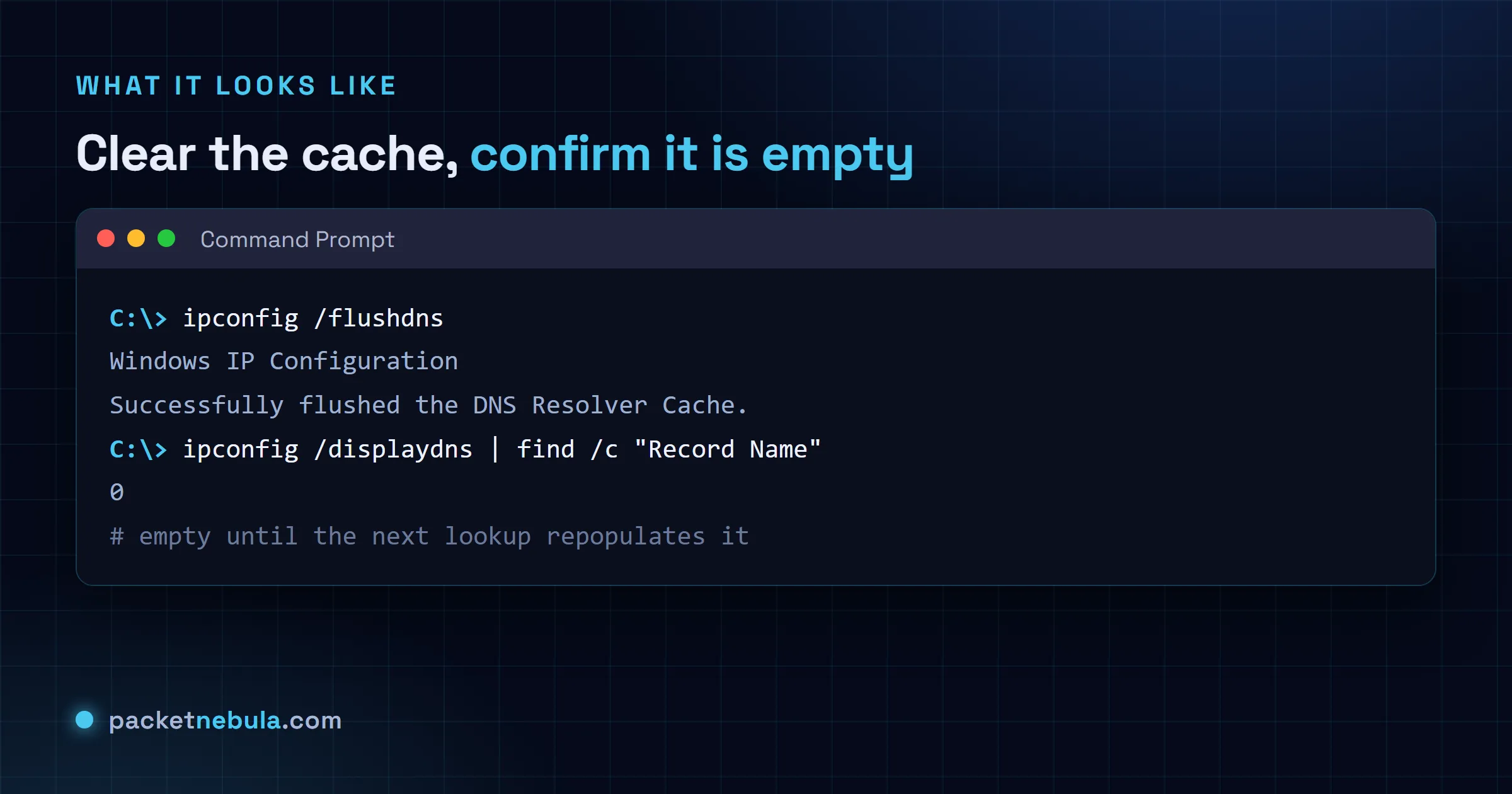
Once in a while the cache seems stuck. When that happens we restart the DNS Client service. Command Prompt opened as administrator this time:
net stop dnscache && net start dnscache
“Access is denied” means the prompt isn’t elevated. Reopen it with Run as administrator and try again.
When the stale answer is somewhere else
If a site still points at the wrong server after all this, the cache you need isn’t on your PC. Your browser keeps its own DNS cache (Chrome clears it at chrome://net-internals/#dns), and the home router caches lookups too, a reboot clears that one. The last suspect is public resolvers: they hold the record until its TTL runs out, and no local command can shortcut that wait.
On Linux instead? The resolvers are completely different there: see how to flush the DNS cache on Linux.
When the flush changes nothing, the cache you cleared probably wasn’t the one answering. There are three others, and they’re all common.
Your browser keeps its own. In anything Chromium based, open chrome://net-internals/#dns and clear the host cache there, because it survives an ipconfig /flushdns quite happily. Then check the hosts file at C:WindowsSystem32driversetchosts, which overrides DNS entirely and is where old test entries go to haunt people months later.
The modern one catches almost everybody. If secure DNS is on in your browser, DNS over HTTPS means the browser never asks Windows in the first place, so the OS cache is irrelevant to what you’re seeing on screen. It’s under Privacy and security, then Security, in Chrome and Edge. Turn it off temporarily when you’re debugging a resolution problem, otherwise you’re troubleshooting a resolver that isn’t being used.
Frequently asked questions
Do I need administrator rights to flush the DNS cache?
No, not for the basic ipconfig /flushdns. A normal Command Prompt does it. You'd only need an elevated prompt to go further and restart the DNS Client service with "net stop dnscache", and that's rarely necessary.
How do I know the flush actually worked?
The command prints "Successfully flushed the DNS Resolver Cache" on success. Want proof anyway? Run "ipconfig /displaydns" right after: a freshly flushed cache is nearly empty, then it refills as you browse.
I flushed the cache but the site still resolves to the old IP. Why?
The stale answer probably lives somewhere else. Your browser keeps its own DNS cache (in Chrome, clear it at chrome://net-internals/#dns) and the home router caches too. The last suspect is public resolvers: they hold the record until its TTL expires, and our DNS TTL guide explains why that wait can't be skipped.
What’s the PowerShell equivalent of ipconfig /flushdns?
Clear-DnsClientCache. Same job, and it's handier in scripts. Both clear the same Windows resolver cache, so use whichever shell you've already got open.