




Your dev server won't start, and Windows greets you with 'address already in use'. Something's squatting on the port, and the fix is to kill that process, not the port itself: run netstat -ano, find the LISTENING line for your port (say 8080), read the PID in the last column, then taskkill /PID number /F. Two commands, error gone. Below we walk through reading the netstat output, checking which program owns the PID before you kill anything (ten seconds well spent), the PowerShell one-liner for people who live in that shell, and the two cases that trip everyone up: admin rights and a port stuck in TIME_WAIT.
The short answer
Find the PID listening on the port with netstat -ano | findstr :8080, read it from the last column, then run taskkill /PID 1234 /F. The “address already in use” error clears the moment the process dies. PowerShell folks get it in one line.
Find the PID, then confirm what it is
netstat -ano | findstr :8080
That spits out one line per connection on the port. The one we care about is in the LISTENING state, and the number in the last column is the PID of the process holding it. Working a different port? Our kill process on a port generator drops your number straight into every command on this page, Windows and Unix, ready to copy.
Never kill a PID blind. Check which program it’s first:
tasklist /FI "PID eq 1234"
If it’s the dev server you forgot to stop, great. If it’s something you don’t recognize, we’d rather know that before force-stopping it. So would you.
Kill it, from cmd or from PowerShell
taskkill /PID 1234 /F
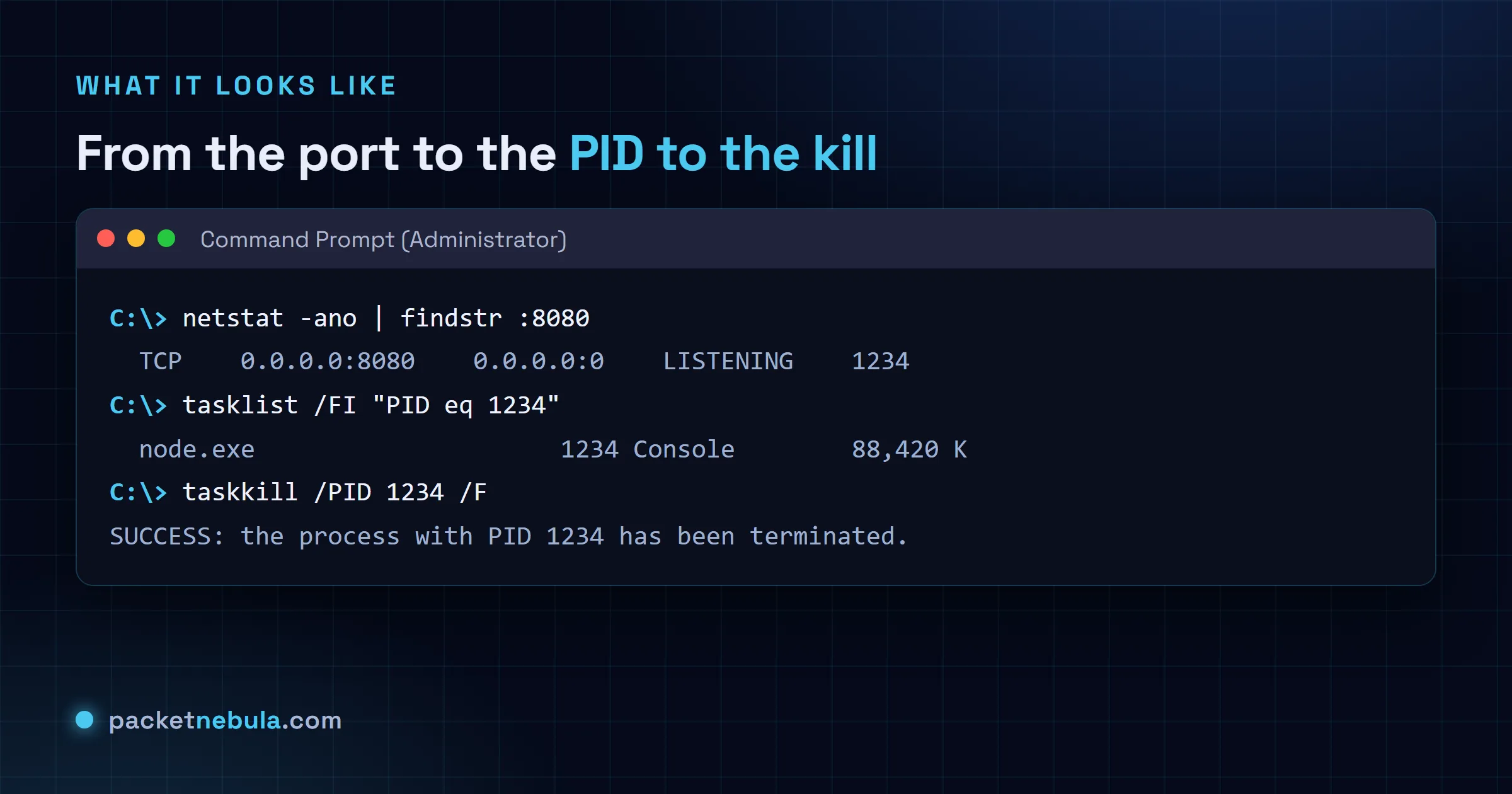
/F forces termination. Got “Access is denied”? The process isn’t yours; reopen the prompt as administrator and run it again. Here’s the whole sequence end to end:
Living in PowerShell anyway? Skip netstat entirely. Honestly, this is the version I reach for most days:
Get-Process -Id (Get-NetTCPConnection -LocalPort 8080).OwningProcess | Stop-Process -Force
When it behaves differently than you expect
Two surprises, both common. A port in TIME_WAIT has no owning process to kill; the socket is just cooling down and clears on its own in a minute or two. Nothing to do but wait. And “Access is denied” always means the same thing here: the process belongs to another user or a service, so run the prompt as administrator.
On Linux or macOS instead? The tools are lsof and kill: see how to kill the process using a port on Linux.
Now the case that wastes an afternoon: the port is refused and nothing is listening on it. You run netstat -ano, the port is absent, and binding still fails with a permissions error rather than the usual "only one usage of each socket address".
That’s a reserved range. Hyper-V, WSL and Docker Desktop grab blocks of dynamic ports on boot, and anything inside those blocks is unavailable even though no process holds it. Windows will happily tell you which ranges, if you ask.
netsh int ipv4 show excludedportrange protocol=tcp
If your port falls inside one of those ranges, killing processes gets you nowhere. Move your app to a port outside them, or reserve yours explicitly with netsh int ipv4 add excludedportrange so nothing else can take it after the next reboot. And while you’re reading netstat output, remember PID 4 is the System process. It legitimately holds ports 135 and 445 and sometimes 80, you can’t kill it, and trying will just make Windows unhappy.
Frequently asked questions
How do I find which process is using a port on Windows?
Run "netstat -ano | findstr :8080" and read the last column of the LISTENING line: that's the PID. To see which program it actually is, run tasklist filtering on PID eq 1234. PowerShell users can skip all that; "Get-NetTCPConnection -LocalPort 8080" shows the owning process directly.
taskkill says "Access is denied". What now?
The process isn't yours: it belongs to another user or runs as a Windows service, so you need an elevated prompt. Reopen Command Prompt with Run as administrator and the same taskkill command goes through.
Is there a PowerShell one-liner?
Yes: "Get-Process -Id (Get-NetTCPConnection -LocalPort 8080).OwningProcess | Stop-Process -Force". One line, and it finds the PID holding the port and kills the process.
The port shows TIME_WAIT, not LISTENING. Can I kill it?
No, and you don't need to. TIME_WAIT means no process holds the port anymore; the socket is just cooling down after closing, and it clears itself within a couple of minutes. Nothing to kill. Just wait.