

A disk fills up, or a config file vanishes, and suddenly we need one file out of fifty thousand. find is the tool for that, and its shape never changes: find, then where to look, then what to match. find . -name '*.log' lists every .log file under the current folder; swap the dot for /var/log to search there instead. From there we filter. -type f keeps it to files (d for directories), -size +100M pulls out the big ones. -mtime -7 catches anything changed this week. Then we act on the matches with -delete or -exec. It ships on every Linux and macOS box, no install. Here's the everyday syntax we actually reach for, plus the safe way to delete matches without wiping the wrong tree.
The short answer
find . -name '*.log' lists matching files below the current folder. Narrow with -type and -size (or -mtime for age), then act with -delete or -exec. Run it without -delete first and read the list. Every time.

Find by name, size or age
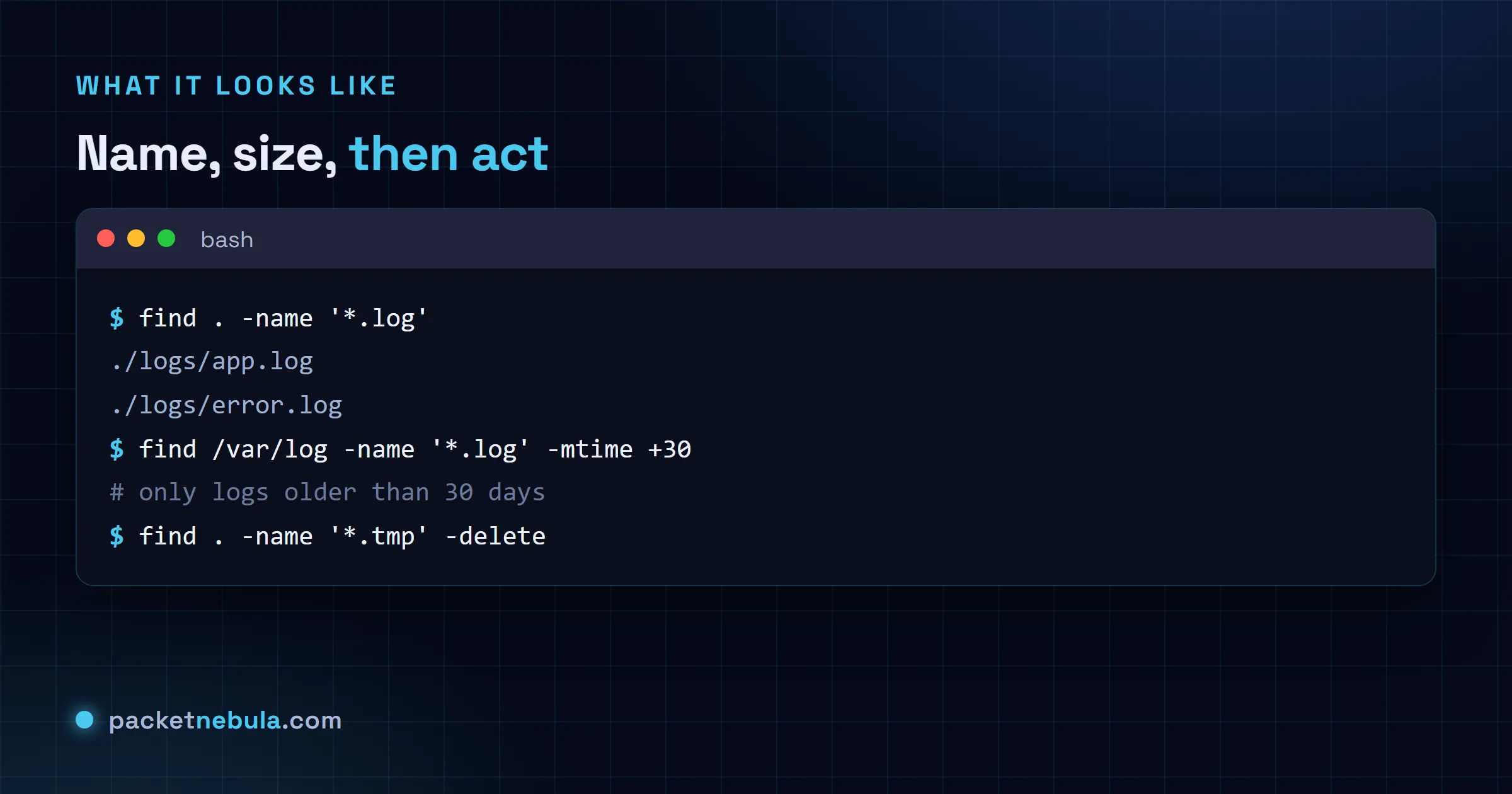
find . -name '*.log'
That walks the current folder and everything under it. Case getting in the way? -iname matches without caring about it.
find /var/log -name '*.log' -mtime +30
That one lists logs nobody has touched in a month. And when something’s eating the disk, we match on size, files only:
find . -type f -size +100M
Act on the results, carefully
find . -name '*.tmp' -delete
Run it once without
-delete and read the list. Every line. find does exactly what we tell it, including deleting a tree we never meant to touch. It happens, and it’s a bad afternoon.
Other handy filters
-type d finds directories, -empty finds empty files or folders. -newer ref matches anything modified more recently than a reference file, and -exec command {} + runs a command on every match when -delete isn’t what you need.
Three things make find pleasant rather than painful, and none of them are obvious from the manual page.
First, -maxdepth has to come before the other tests or find complains, and it saves you from walking an entire filesystem when you only meant the current folder. Second, permission errors will flood your terminal on any system-wide search, so send them away with 2>/dev/null and read what’s left. Third, excluding a directory needs -prune rather than a filter, which is the syntax everybody looks up every single time.
find . -maxdepth 2 -name '*.log' 2>/dev/null
find . -path ./node_modules -prune -o -name '*.js' -print
One more, on -exec. Ending it with ; runs your command once per match, which on ten thousand files means ten thousand processes. Ending it with + batches the matches into as few invocations as possible, exactly like xargs does, and it’s dramatically faster. We use + unless the command genuinely needs one file at a time.
The syntax never quite becomes muscle memory. It’s the order that catches us out, because the path comes before the tests and the action goes last, and getting that wrong accounts for most of the errors you’ll ever see from this command.
Frequently asked questions
How do I find a file by name?
find . -name '*.conf' lists every .conf file under the current directory. -iname does the same job but ignores case. And keep the quotes around the pattern, otherwise the shell expands the star before find ever sees it.
How do I find files bigger than a certain size?
It's -size plus a suffix: -size +100M means larger than 100 MB, -size -1k means smaller than 1 KB. We always add -type f too, so it matches files only, not directories.
How do I find files changed recently?
Days are the unit for -mtime: -mtime -7 means modified in the last 7 days, -mtime +30 means older than 30 days. Need minutes instead? -mmin works exactly the same way.
How do I delete the files I found, safely?
Run the find without -delete first and actually read the list. Once it's exactly right, append -delete (or -exec rm to act on each one). Deleting blind is how people erase the wrong tree. Look first, every time.


