




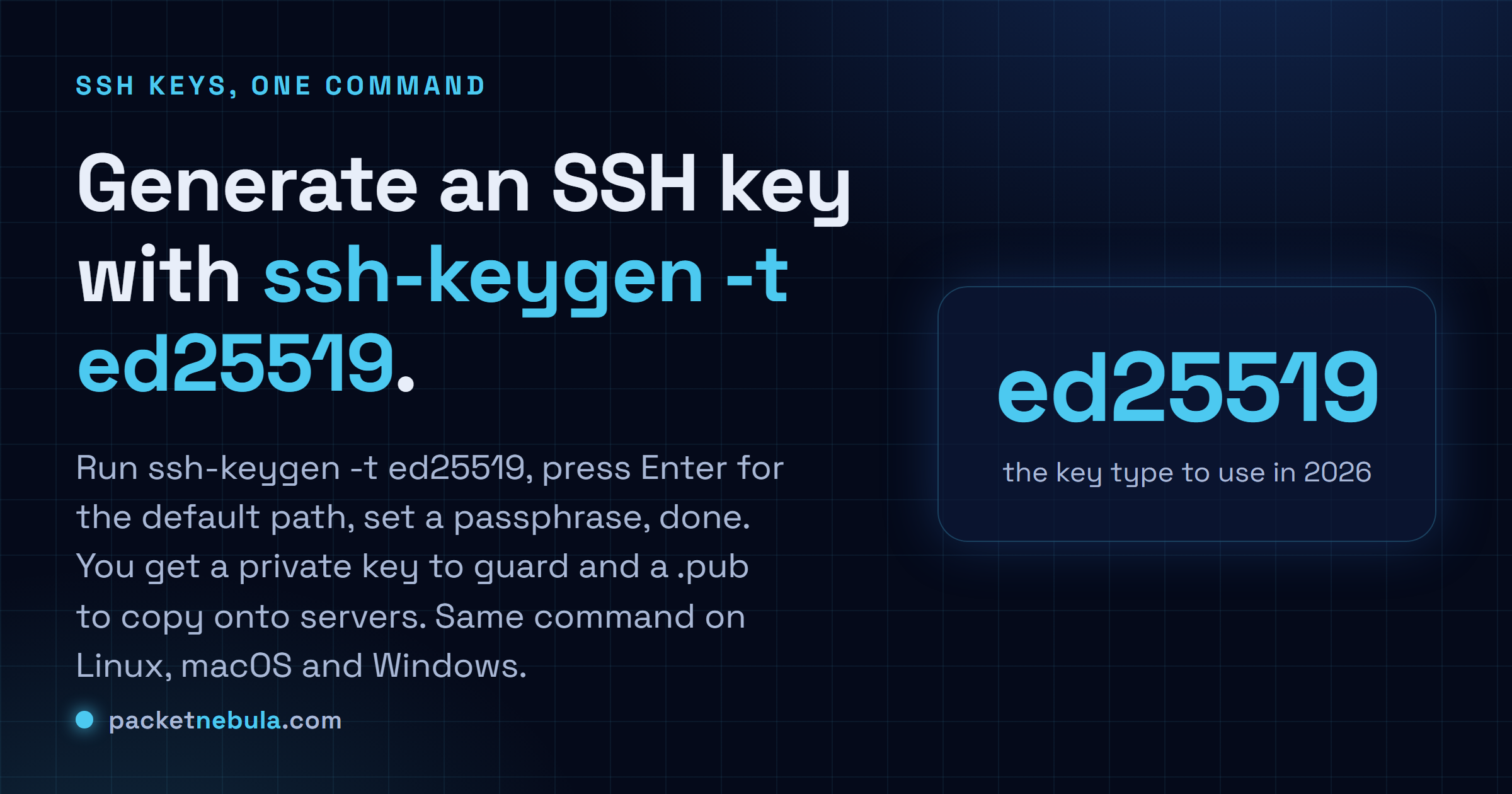
Still typing a password every time you SSH into a box? One command ends that: ssh-keygen -t ed25519, then Enter to accept the default path and a passphrase when it asks. You get two files, a private key you guard and a matching .pub you can hand to any server. GitHub and GitLab take it too. ed25519 is the modern default in 2026; the only reason we fall back to RSA 4096 is an ancient server that hasn't heard of it yet. Same command in a Linux or macOS terminal and in PowerShell on Windows 10 and 11. We'll walk the two prompts and the easy way to get the public key onto a server. Plus the passphrase question most people get wrong.
The short answer
Run ssh-keygen -t ed25519 and take the default path. Set a passphrase when it asks. Keep the private key, share the .pub. Same command everywhere, and ssh-copy-id user@host installs the public key on a server for you.
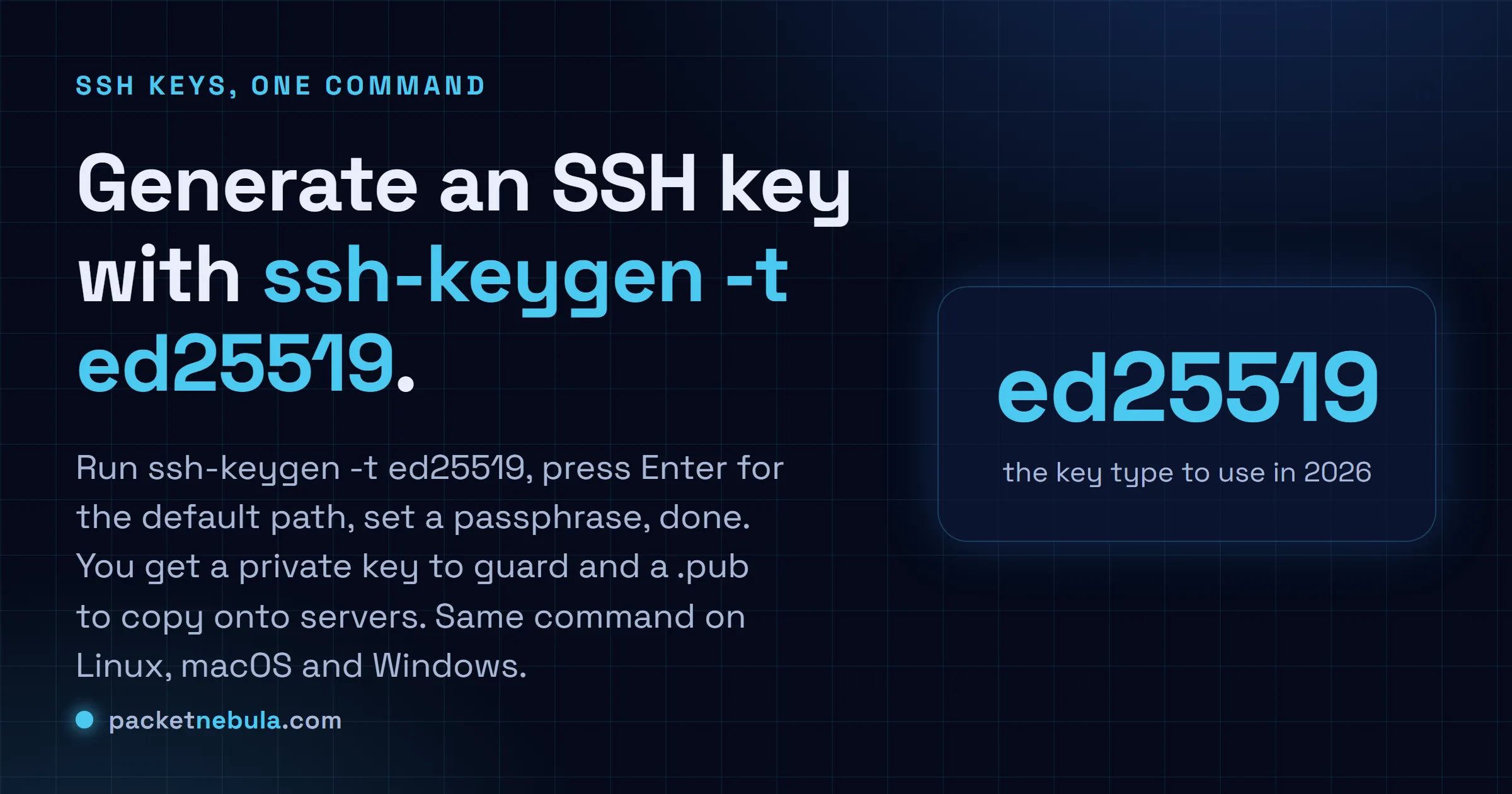
Run ssh-keygen and answer the two prompts
ssh-keygen -t ed25519 -C "you@example.com"
The -C part is just a label baked into the key so you can tell it apart later. An email works, so does “laptop-2026”. On Windows, the identical command runs in PowerShell.
First it asks where to save the key: press Enter to accept ~/.ssh/id_ed25519, unless you’re juggling several keys and want a custom name. Then the passphrase. Set one. It encrypts the private key, so the file on its own is useless to whoever copies it. You type it once per session, that’s it.
Copy the public key, and the one case for RSA
The easy way, on Linux and macOS:
ssh-copy-id user@host
That appends your .pub to the server’s ~/.ssh/authorized_keys. No ssh-copy-id (Windows, mostly)? Print the public key and paste it into that file yourself:
cat ~/.ssh/id_ed25519.pub
Hit a server too old for ed25519? Make an RSA key instead, and go 4096 bits, never the old 2048 default:
ssh-keygen -t rsa -b 4096
The passphrase question, honestly
People skip the passphrase because typing it feels like friction. It isn’t. An agent caches it after the first use, so day to day you never notice it, and the payoff is that a leaked private key is just an encrypted blob. The only place I leave it empty is a throwaway automation key that nothing important trusts.
If the key is refused and you’re certain it’s the right one, check permissions before anything else. This is the single most common reason a perfectly good key fails, and the server logs it as a failed authentication rather than as the permission problem it actually is.
chmod 700 ~/.ssh && chmod 600 ~/.ssh/authorized_keys
Your home directory matters too. If it’s group writable, sshd refuses the key on principle, because anyone in that group could have rewritten your authorized_keys. Strict mode is on by default and it’s right to be. When you’re still stuck, ssh -vvv user@host prints exactly which keys it offered and what the server said about each, and the answer is usually in there within twenty lines.
Frequently asked questions
Which key type should I use, ed25519 or RSA?
ed25519, no contest. It's fast and the keys are tiny, with security that holds up. The only reason we still generate an RSA key with "ssh-keygen -t rsa -b 4096" is an old server or device that doesn't support ed25519 yet.
Should I set a passphrase on my SSH key?
Yes. The passphrase encrypts the private key on disk, so a stolen laptop doesn't hand over your servers with it. You type it once per session and an SSH agent remembers it after that. The one exception we'd accept is an unattended automation key, and even that one deserves a second thought.
How do I copy my public key to a server?
On Linux and macOS, "ssh-copy-id user@host" does it in one step. Anywhere else, append the contents of id_ed25519.pub to ~/.ssh/authorized_keys on the server. The private key (the file without .pub) never leaves your machine. Never copy that one.
Where are the key files saved?
In the .ssh folder of your home directory: id_ed25519 (private) and id_ed25519.pub (public). That's ~/.ssh on Linux and macOS, C:Usersyou.ssh on Windows. The .pub is the only file you ever share.