

Some CDN link just handed you a 200-byte HTML file instead of the zip. We've been there, and the fix is one letter: curl -LO follows the redirect to the real file, while plain curl -O saves whatever the URL points at, under its own name. For APIs, curl -i https://api.example.com prints the status line and headers with the body, which is what you actually want when an endpoint returns the wrong thing. curl ships with macOS, Linux and Windows 10 and 11, so there's nothing to install. Below we cover clean downloads and a POST with a JSON body, then the handful of flags (-s, -L, -H, -d) we keep reaching for.
The short answer
curl -O url downloads to a file and curl -L follows redirects. For API testing, curl -i url shows the headers with the body. Send JSON with -X POST -H and -d. Built into macOS, Linux and Windows.
Download a file
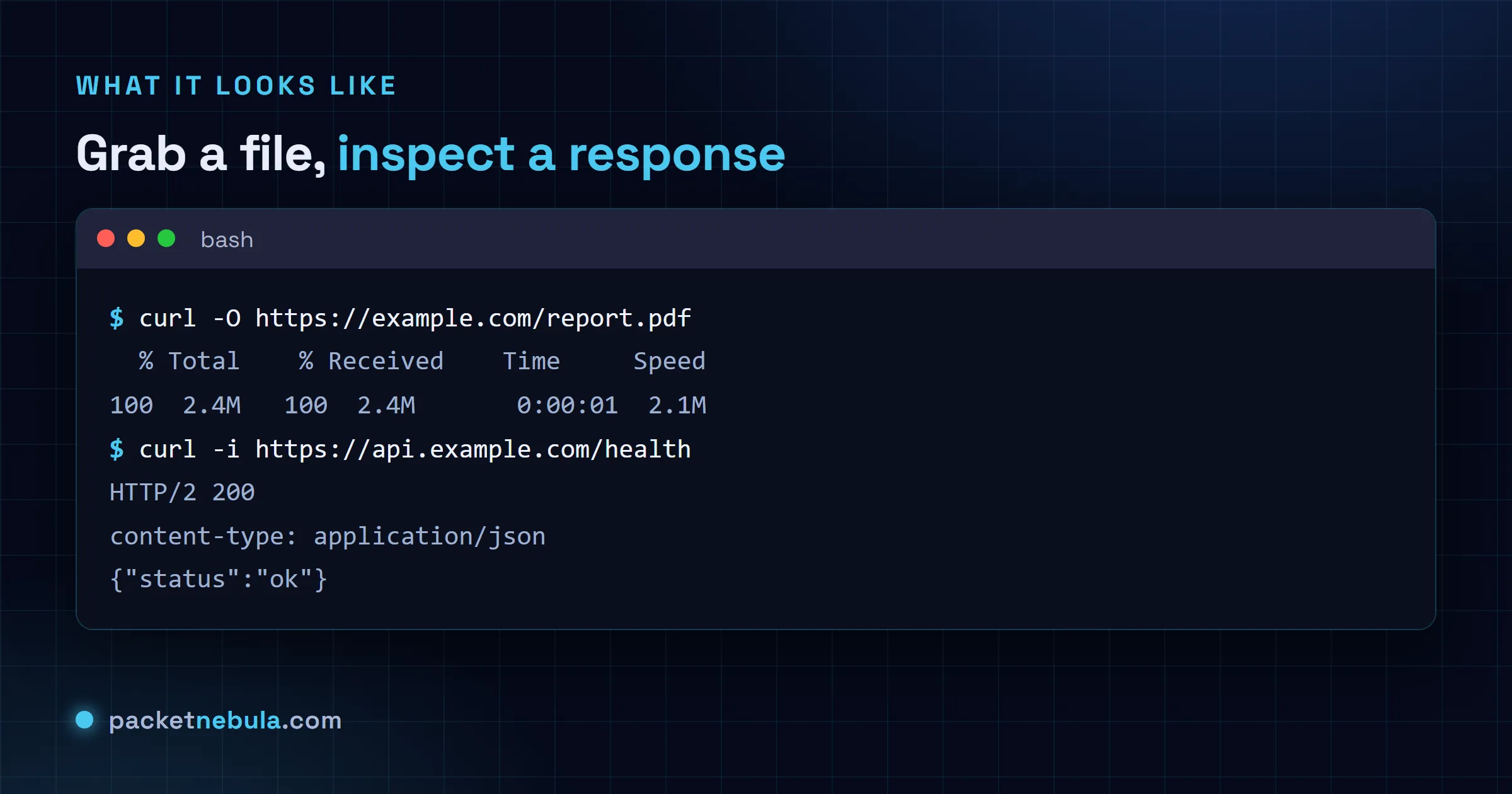
curl -O https://example.com/report.pdf
That drops report.pdf into the current folder. Want a different name on the way down? Lowercase -o. And if the link redirects (most do), add -L; I forget it exists until a download comes back as a tiny HTML file:
curl -LO https://example.com/file.zip
Test an API, including a POST with JSON
curl -i https://api.example.com/health
-i prints the status line and headers above the body, so you see the 200 (or the 500) and the content type instead of just the JSON. Headers only? Capital -I.
curl -X POST -H "Content-Type: application/json" -d '{"name":"test"}' https://api.example.com/items
-H sets the content type so the server parses the body as JSON, and -d carries it. Drop the -X POST and curl still POSTs. -d implies it.
The flags you’ll actually reuse
Not many. -O or -o to save, -L to follow redirects, -i or -I for headers, -H to set one, -d to send a body, and -s to silence the progress meter in scripts. That’s the whole working set. When we want to grade the headers a site sends back without memorizing them, our HTTP headers checker does it visually.
Two flags separate a curl command that works at the prompt from one that’s safe in a script.
-f makes curl fail on an HTTP error instead of cheerfully saving the 404 page and exiting zero. Without it, a broken download looks like a successful one and your script carries on with a file full of HTML. -L follows redirects, which matters because most download URLs redirect at least once and curl doesn’t follow by default, unlike a browser.
curl -fsSL -o app.tar.gz https://example.com/latest
The -sS pair is the third habit worth keeping: -s silences the progress meter that pollutes logs, and the capital -S puts error messages back so a failure is still visible. Silent but not mute, which is what you want from anything running unattended.
A single curl line replaces most small download scripts, and it’s nearly always the flags rather than the URL that decide whether the thing survives unattended. Get those right once and you can stop thinking about it.
Frequently asked questions
What’s the difference between curl -O and curl -o?
Capital -O keeps the name the file has on the server. Lowercase -o lets you pick one: "curl -o report.pdf https://example.com/r". Pass neither and curl dumps the file straight to your screen, which is a mess for anything binary.
My download saved a tiny HTML file instead of the real one. Why?
The URL redirected, and curl saved the redirect page itself. Add -L so it follows through to the final file: "curl -LO https://example.com/file.zip". Most CDN links and shortened URLs won't work without it.
How do I send a POST request with JSON?
Set the header with -H and the body with -d, like "curl -X POST -H header -d data url". curl switches to POST the moment it sees -d, so -X POST is technically optional, but we write it anyway; the intent reads better.
How do I see only the response headers?
-I (capital i) sends a HEAD request and prints headers only. Lowercase -i prints headers plus the body. We use -I to check a status code or a redirect without pulling down the whole file.


