
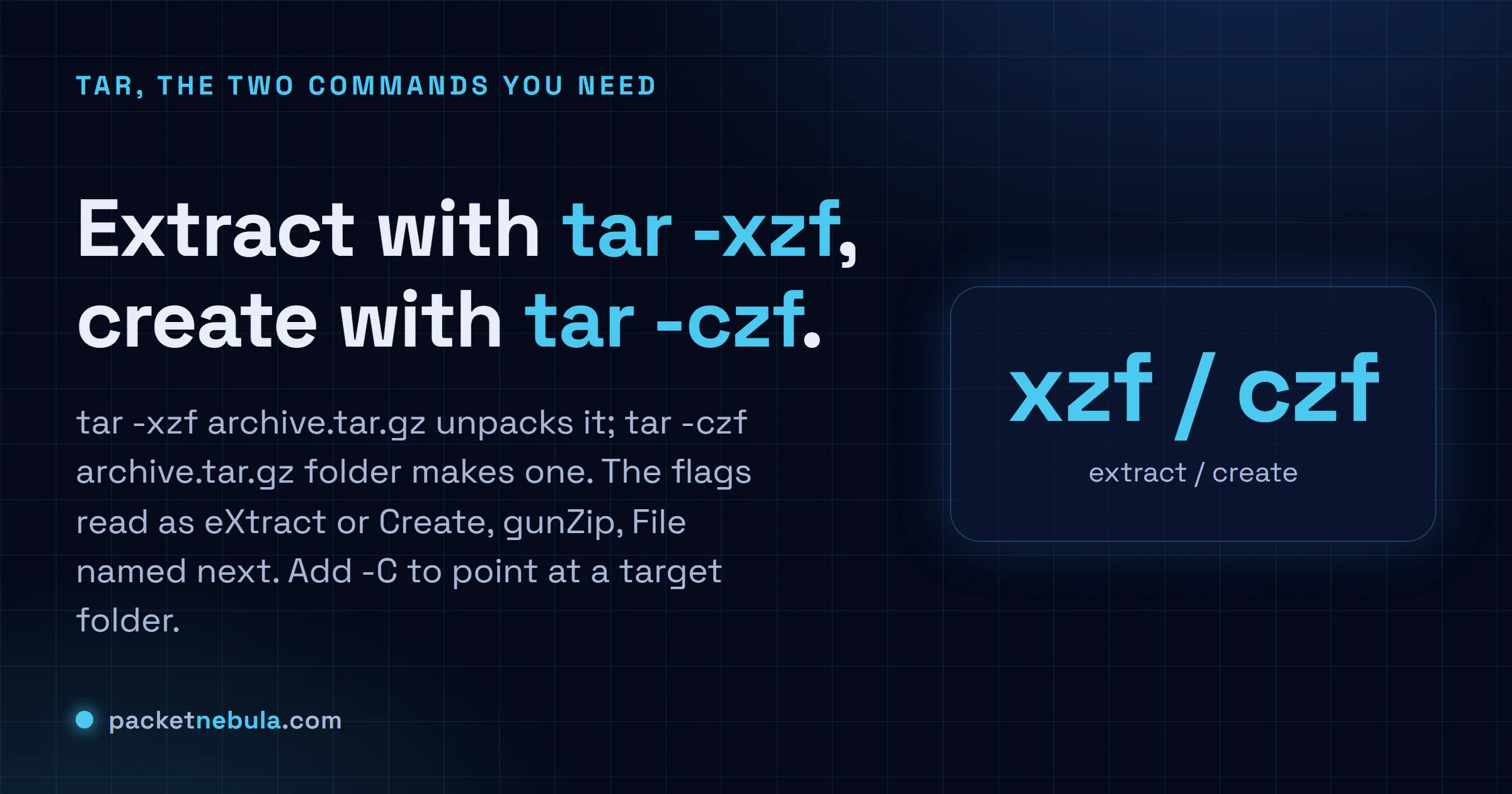
Someone hands us a release.tar.gz and the clock's already ticking. Two commands cover almost everything: tar -xzf archive.tar.gz unpacks one, tar -czf archive.tar.gz folder builds one. The flags look cryptic but they read as words once you see it: x for eXtract or c for Create, z for gunZip, f for the File whose name comes next. Add -C to drop the files into a specific folder instead of wherever you happen to be standing. Works on Linux and macOS out of the box, and on Windows 10 and 11 too, where tar now ships built in. Below, each command with a real example, plus the one-letter swaps for .tar.bz2 and .tar.xz. And how to list what's inside before you unpack. Do that one.
The short answer
tar -xzf archive.tar.gz extracts and tar -czf archive.tar.gz folder creates. Check the contents first with tar -tzf archive.tar.gz. The flags read as eXtract or Create, gunZip, File. Add -C /target to pick where the files land.
Extract a .tar.gz
tar -xzf archive.tar.gz
It unpacks into whatever folder we’re standing in, which isn’t always where we wanted it. To send it somewhere specific (the folder must already exist):
tar -xzf archive.tar.gz -C /opt/app
Create a .tar.gz, and look before you leap
Point it at a folder, or name the files one by one:
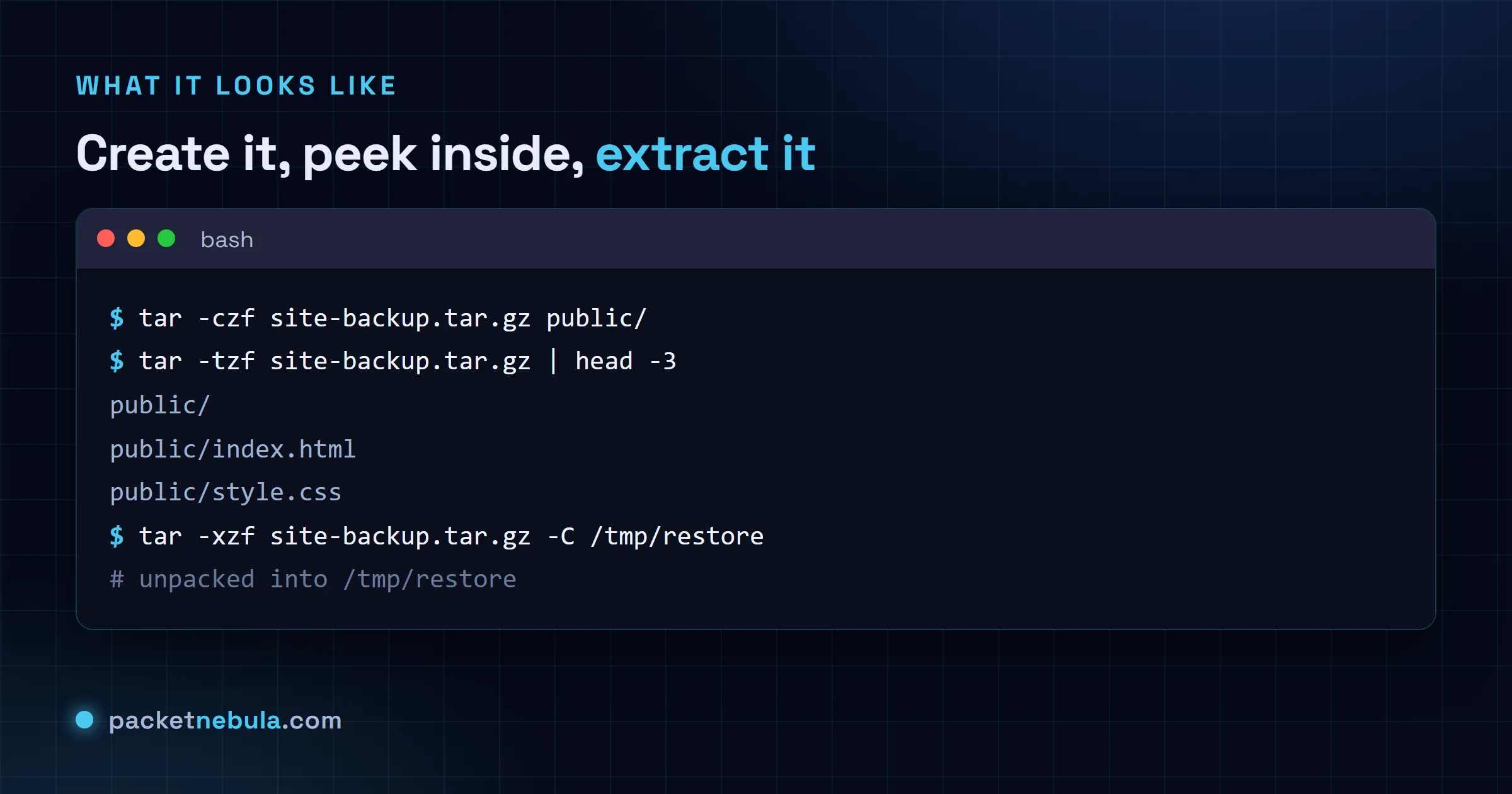
tar -czf backup.tar.gz myfolder/
Some archives unpack a hundred loose files straight into your current directory. A tarbomb. List the contents first and it never catches you:
tar -tzf archive.tar.gz
Other compression, and doing it on Windows
Same verbs, one different letter. Use -j for .tar.bz2 and -J (capital) for .tar.xz. xz squeezes smaller and runs slower, which is why distros love it for downloads. On a slow laptop we’ve cursed it more than once.
No third-party tool needed anymore: tar ships in Windows 10 and 11, same flags, in both Command Prompt and PowerShell. Plain .zip files are the exception there; Expand-Archive is the native route for those.
Always look inside before extracting an archive you didn’t create. A well behaved tarball puts everything in one folder, but nothing enforces that, and one that scatters files across your current directory is a genuine mess to clean up. It even has a name, a tar bomb.
tar tzf archive.tar.gz | head
If the listing shows loose files rather than a single top level folder, GNU tar can wrap them for you with --one-top-level, which creates a directory named after the archive and puts everything inside. Otherwise extract somewhere else entirely with -C, which takes a target directory and is the habit worth building.
tar xzf archive.tar.gz -C /tmp/unpack
Saying the letters out loud while you type them isn’t elegant, but it works. xzf and czf differ by a single character, and one of them cheerfully overwrites the archive you meant to read.
Frequently asked questions
What do the letters in tar -xzf mean?
Each one is a switch. x extracts (swap in c to create), z handles the gzip layer for .gz files. f says the next word is the filename, so tar -xzf reads as extract, gunzip, from this file. Plenty of us still type tar xzf without the dash out of old habit, and that works too.
How do I extract a tar.gz into a specific folder?
Add -C and the target: "tar -xzf archive.tar.gz -C /opt/app". One catch: the folder has to exist first, so run "mkdir -p /opt/app" before it if needed. Leave -C off and tar dumps everything into the current directory.
How do I see what’s inside without extracting?
Swap the x for t (list): "tar -tzf archive.tar.gz". It prints every path inside, so you know whether it's about to spray files all over your current folder. That's the classic tarbomb, and we've all met one.
What about .tar.bz2 or .tar.xz files?
Same commands, one different compression letter: -j for .tar.bz2, -J (capital) for .tar.xz. Modern tar can also auto-detect from the name, so "tar -xf archive.tar.xz" usually just works whatever the compression.


